Telegram Channel
1. Introduction
To use the Telegram channel in the Business Messenger app for sending messages to contacts, you must configure the channel.
The Business Messenger app Telegram channel is based on using the Telegram app bot.
Telegram is an online messaging app. A Telegram Bot is a program that behaves like a normal chat but with additional functions.
For every Business Messenger app Account a Telegram Bot has to be created.
2. Setting Up the Channel
The following instructions are for BM Account Owner.
2.1 Creating a Telegram Bot
After installing the Telegram application and creating a user account, a Telegram bot can be created.
It takes a few steps to create and set a Telegram bot:
-
Log in to the Telegram app with a user account that will be used as bot owner.
-
Search for BotFather - virtual Telegram user, in the search field and start chatting with it by using the "/start" command.
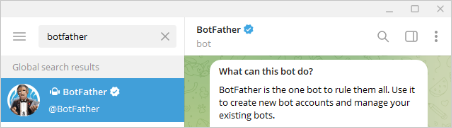
BotFather is a Telegram bot that responds to commands. It helps with creation of one's new bot.
-
Enter the command "/newbot" as a text message with the BotFather.
-
You must define a bot name and username are required to be defined by following the instructions that can be found there in the chat.
-
After setting the name and the username, the bot address and token will be generated and displayed in the chat.
-
The generated token is used to access the HTTP API and must be kept secure.
The token can be revoked by using the "/revoke" command. -
It is useful to set a bot profile photo using the command "/setuserpic" and a bot description using the "/setdescription" command.
The new Telegram bot is created.
2.2 Setting Up the Telegram Channel in the Business Messenger App
In order to connect the Business Messenger app with Telegram bot that was just created, it is necessary to go to the Settings > Channels section.

By clicking the Telegram option from the list of channels, a new window will be opened where the channel can be set up.

Enter the generated bot token in the Bot Token field. By clicking the Save button, it will save the token and connect the Business Messenger app with the Telegram API.
The Bot Name, Bot URL, and QR code icon will be displayed in the channel section.

The Bot Name is useful to easily find the bot in the Telegram app and start chatting with it.
The Bot URL can be used for testing the bot. Clicking on the Send message button on the Bot URL page will open the Telegram app where the chat can be started and defined keywords in Opt-in/Opt-out rules can be tested.
Clicking on the QR code icon will open a new window where the Telegram channel details are presented.
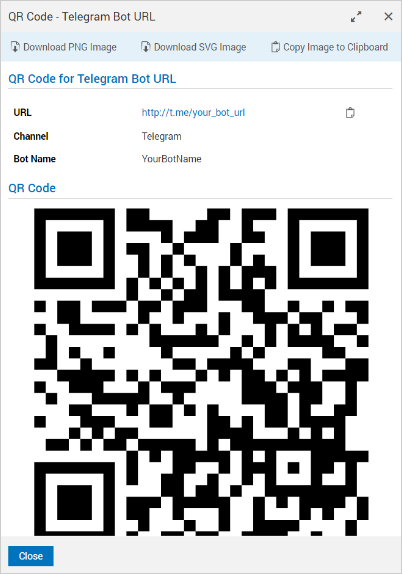
The QR code allows a user to access information instantly. Scanning the QR code with the scanner on a mobile phone, will open Telegram app and start chatting with the bot.
The QR code can be downloaded as PNG and SVG, and copied to the clipboard by using the given options at the top of the opened window.
2.3 Setting Up the Opt-in/Opt-out Rules
In order to tell the Telegram bot what to do, Opt-in/Opt-out Rules must be created in the Business Messenger app Inbound Manager > Telegram section.
Creating Opt-in/Opt-out rules is very important. Without defined Opt-in/Opt-out rules and configured keywords, no contacts will be stored, since there is no definition about if and how to store new subscriptions.
In the Inbound Manager Telegram section, clicking on the Add Telegram Inbound rule button, will open a new window where, for the selected rule Type - Opt-in or Opt-out, a Keyword should be set up. A Keyword is a kind of command that a bot will understand and do a specific action. Telegram bot custom commands start with '/' character. A keyword is a text a Telegram user is expected to send for a rule to be activated and should be unique, meaning that two rules cannot share the same keyword.
There should be defined rules for Opt-in and Opt-out for all communication or for some specific subscription.
3. Updating the Channel Configuration
From the Business Messenger app Settings > Channels section by clicking the Telegram option, a window will be opened displaying the channel configuration data.
For the Telegram channel, the Bot token can be updated by filling out the Bot Token field with the new token. Clicking on the Save button will save the changes and connect the Business Messenger app with the API.